The schedule
The Schedule page is the whole team's week. Everyone can see it; what you can do on it depends on whether you're staff or a manager.
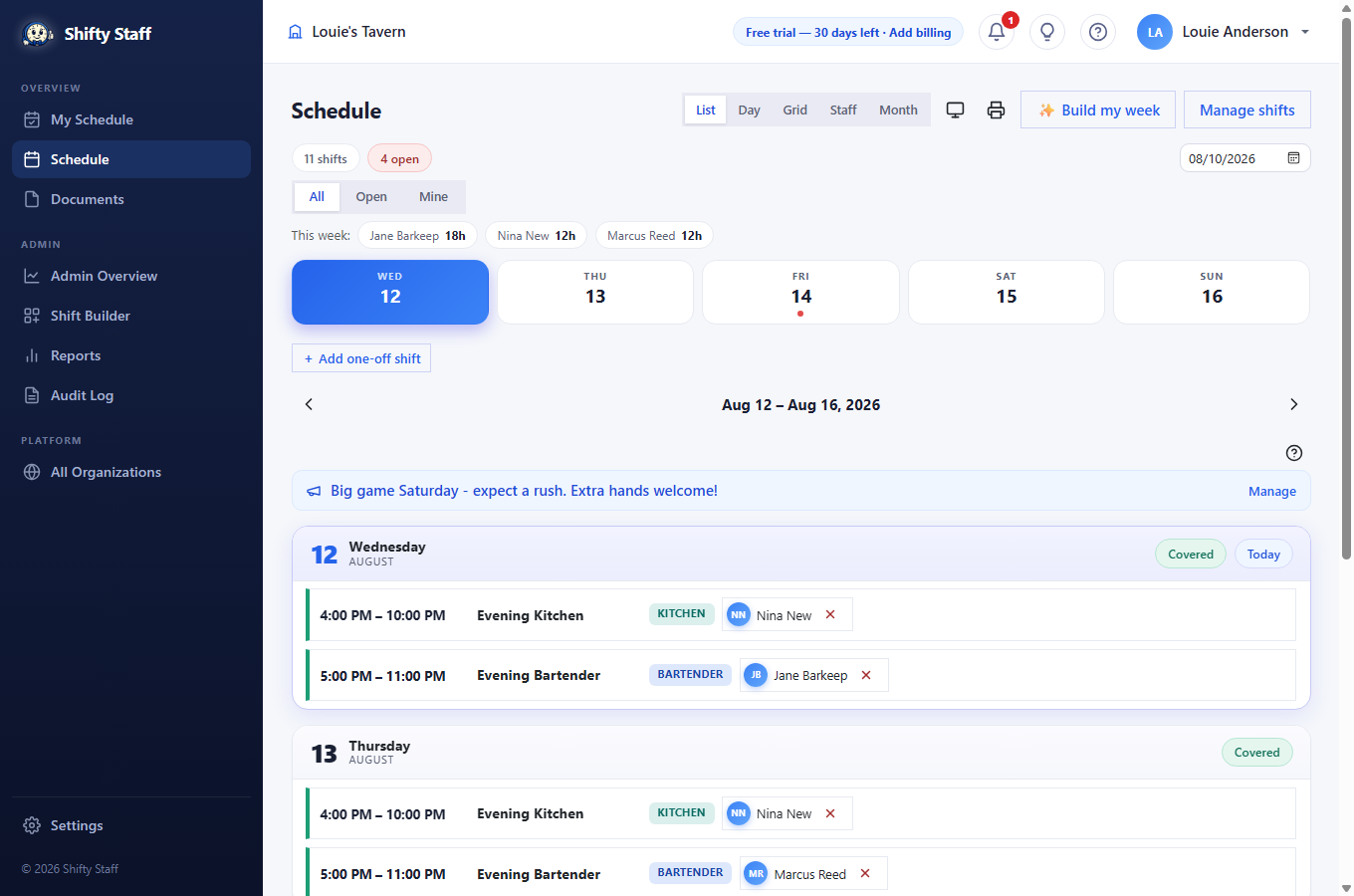
Reading the week
- A red edge on a shift means it's open — nobody has it yet. A green edge means it's covered.
- The colored tag on each shift is its job (Bartender, Kitchen…), matching the colors you set up.
- The week strip at the top jumps between days; a red dot marks days that still have open shifts.
- The counters up top total the week: how many shifts, how many still open, and (for managers with wages set) the week's labor cost.
Five ways to look at it
The List / Day / Grid / Staff / Month buttons switch views. List is the workhorse. Day zooms into one date. Grid is a compact seven-column calendar. Staff shows a person-by-day table — great for spotting who's light or heavy. Month zooms out. Your choice is remembered.
Filling shifts (managers)
- Assign directly: pick a name from the dropdown on any open shift and press Assign. The person is notified instantly. If the assignment collides with anything, you get a clear heads-up — it still saves, but never by accident. The site checks: another shift that day (at any of your locations), their availability, approved and still-undecided time off, and their wishes — preferred days off, preferred hours, weekly shift and hour limits, and coworkers they'd rather not share a shift with. Several problems stack into one message.
- Let people volunteer: staff can sign up for open shifts themselves (first come, first served). You can turn this off under Settings → Defaults.
- See one person's week: click a name in the "This week" pills at the top and the calendar shows only their shifts. Click again for everyone.
When plans change
- Offering a shift up: someone who can't work a shift presses Offer up. Coworkers who hold the right job — and aren't already working, off, or unavailable that day — get notified, and the first to claim it takes it. The shift stays with the original person until someone actually claims it.
- Swap approval: if you'd rather sign off on every hand-over, turn on Shift swaps need manager approval in Settings → Defaults. Claims then wait for your Approve/Decline on the schedule.
- Standing by: when a shift is already full, coworkers can still press Volunteer. The person working it and the admins are both told; if the spot frees up, the first volunteer gets it automatically — or you can grant them an extra slot from the Reports page if you could use the extra hands.
- Cancelling a slot removes just that day's slot — future weeks aren't touched. To stop a shift recurring, remove it under Settings → Shifts.
Tasks for a shift
Sometimes a shift comes with something extra that isn't obvious — "change the range hood filter tonight", "rotate the walk-in stock". Each shift row has a small clipboard button (managers always see it; staff see it once a list exists). Click it and a popup shows the checklist.
- Managers press ✎ Edit list and type one task per line — that's the whole interface. Save, and each line becomes a checkbox. Editing later keeps the ticks on lines you didn't change.
- Everyone scheduled on that shift can tick items off — the popup shows "Done by Nina · 6:40 PM" so you can see who handled what. The clipboard turns green when the list is complete.
- Staff see the same checklist on their My Schedule next-shift card and in the app's shift detail, and get one notification when tasks are added to a shift they're on. The wall display shows a small 📋 on shifts that have tasks.
After the shift (managers)
On past days, each person's chip gets a small attendance dropdown — mark late arrivals and no-shows, and they feed the employee snapshot and the Reports page so patterns are visible, not anecdotal. For people who need a nudge, turn on Require shift confirmations on their employee page: they're asked to confirm "I'll be there" before each shift, and you're alerted if they haven't.
Printing and the wall
The printer button produces a clean paper schedule for the back of house. The TV button opens the wall calendar — a full-screen, self-refreshing view of the week for a screen you're already signed in on. For a dedicated TV in the staff area, use a paired display instead: no login on the screen, never sleeps, rotates through today's shifts, tasks, and open shifts with QR codes to claim. See TV displays.