A guide for your staff
Share this page with new hires — it's their whole first week with Selfie Shifts, in five minutes.
1 · Your login
Your manager added you with your email address, and you got an email with a temporary password. Log in at selfieshifts.com (or in the app) and you'll pick your own password right away. Work at more than one place that uses Selfie Shifts? Same one login shows everything.
2 · My Schedule — your home page
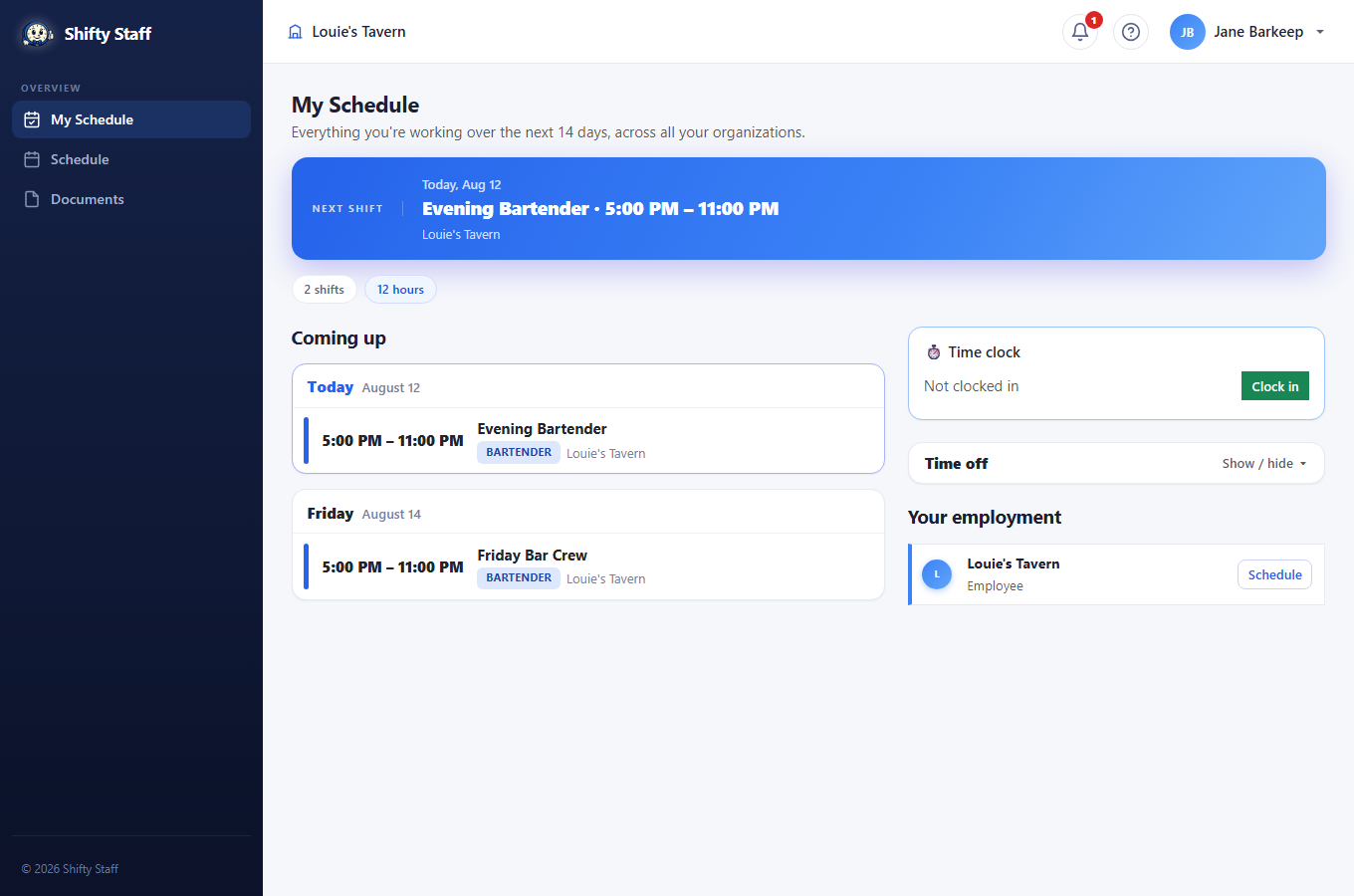
- Your next shift is the big card up top; everything for the next two weeks is listed below, color-coded by job.
- If your workplace uses the time clock, the Clock in / Clock out card sits right at the top.
- Time off lives here too: pick your first and last day off, send it, and you'll get a notification when it's decided.
- Want your shifts inside Google or Apple Calendar? Your Profile page has a private calendar link — subscribe once and your shifts keep themselves up to date.
3 · Tell the schedule about your life
Open My preferences (click your name, top right). Two kinds of settings:
- When I can't work — a hard limit for each weekday: any time, can't work, or only certain hours. School, second job, childcare. Managers get warned if they try to schedule over it.
- What I'd rather — wishes: days you'd prefer off, how late you like to stay, most shifts or hours a week, even coworkers you'd rather not share a shift with (only your manager ever sees that). The automatic scheduler honestly tries to follow these.
4 · Picking up and giving away shifts
- The Schedule page (or the app's Pick up tab) shows open shifts you're qualified for — press Sign up and it's yours, first come first served.
- Can't make a shift? Press Offer up on it. Qualified coworkers get notified and the first to claim it takes it — but it stays yours until someone does, so don't assume it's covered.
- Rather swap than give away? Propose a trade in the app: your shift for one of theirs. They can accept, decline, or counter once.
- See a full shift you'd love to work? Press Volunteer to stand by — if the spot frees up, it's automatically yours.
One more thing to look for: if your manager pinned tasks to your shift ("change the hood filter tonight"), you'll see a 📋 badge on that shift — on My Schedule and in the app. Open it and tick items off as you do them; your manager can see it's handled. And if the whole team has been given a reminder ("check the fire extinguisher tags"), it shows at the top of My Schedule when it's due, with a Done button.
5 · Stay in the loop
Install the app and allow notifications — you'll hear about open shifts, schedule changes, and trades the moment they happen. The 🔔 bell keeps everything you've been told for 90 days, and on My Preferences you choose how you're reached (email, app, texts) and which topics you care about.