Time clock & payroll
An optional built-in punch clock: staff clock in and out, you review and approve the week, and payroll gets a clean export. If you already have a system for this, leave it off — it's one switch.
Turning it on
Flip Use the built-in time clock under Settings → Defaults. A clock card immediately appears for your staff — at the top of My Schedule on the website and front-and-center in the app.
How punching works
- Staff press Clock in when they start and Clock out when they finish. The card shows how long they've been on the clock.
- Forgot to clock out? The app nudges them five minutes after their scheduled end, then every twenty minutes until they do.
- Punches don't require a scheduled shift — someone called in to help can still clock in.
Reviewing the week
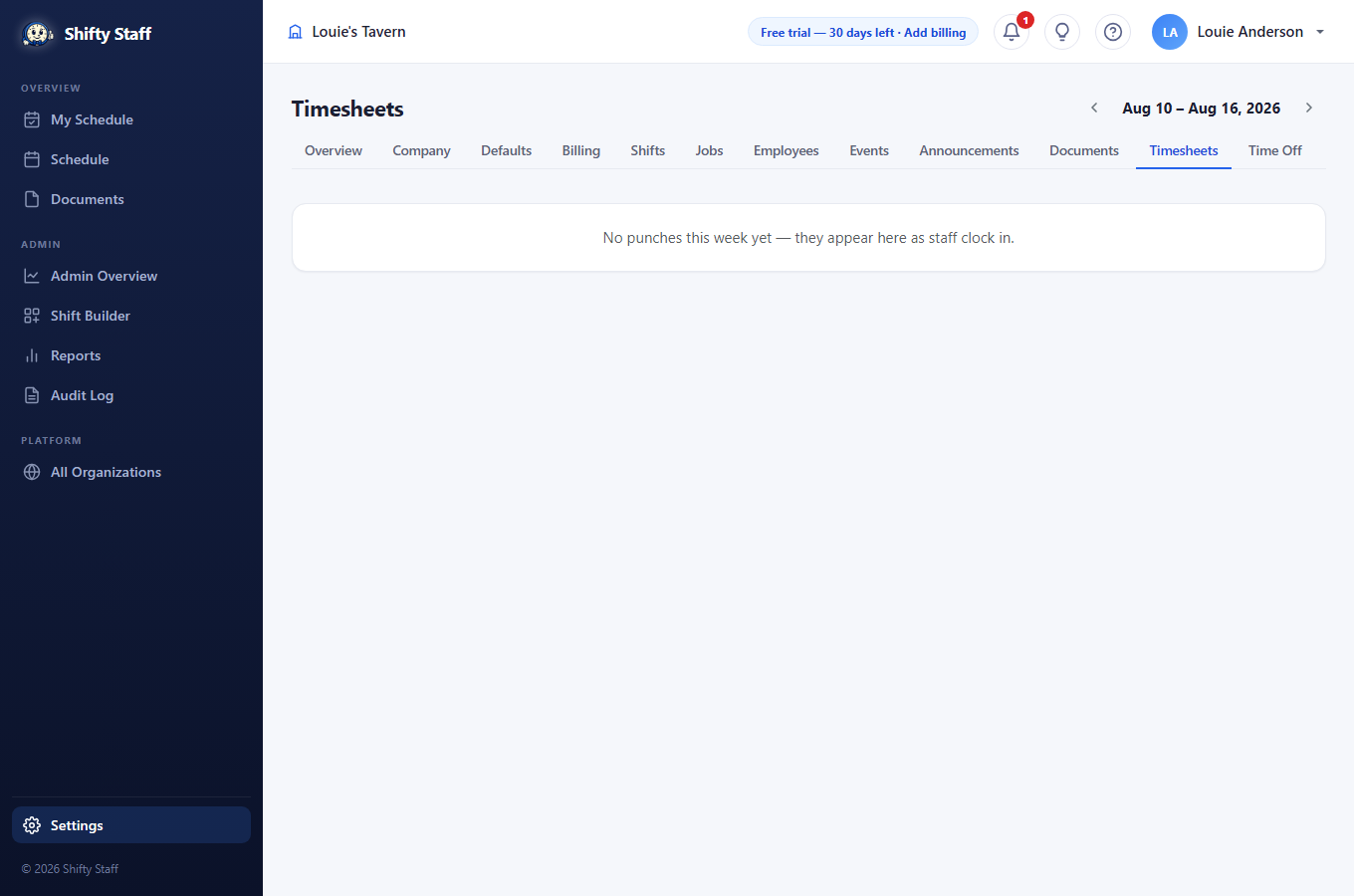
- Open Settings → Timesheets at the end of the week. Each person's card lists their punches, with a badge comparing hours worked against hours scheduled so oddities jump out.
- Fix any bad punch right there — change the times, add a note. Every correction is recorded with your name.
- Press Approve week. The week locks: punches can't change anymore, so payroll gets exactly what you signed off on. (Reopen if you need to fix something after all.)
Getting it into payroll
Press Download CSV for payroll. The file lists every punch plus per-person totals, and the first column is each person's Payroll ID — set it on their employee page to whatever your payroll system calls them (the exact QuickBooks name, an ADP file number, a Gusto ID). That's what lets the other system match rows to people; if it's blank, their name is used.
Wages and the labor meter: if you enter hourly wages on employee pages (admins only), the schedule shows a live 💵 labor-cost figure for the week — and you can set a weekly budget to measure against under Settings → Defaults.